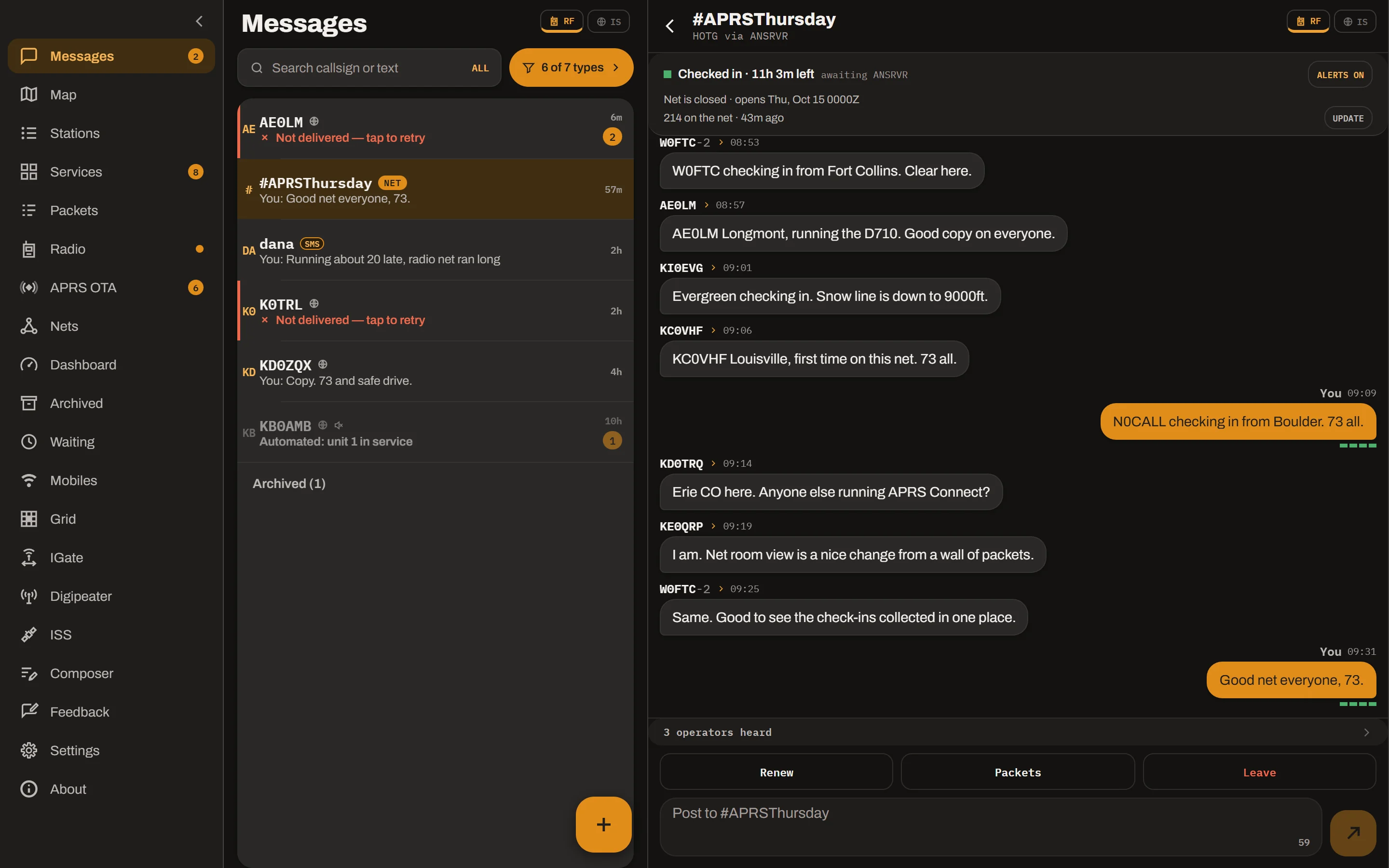
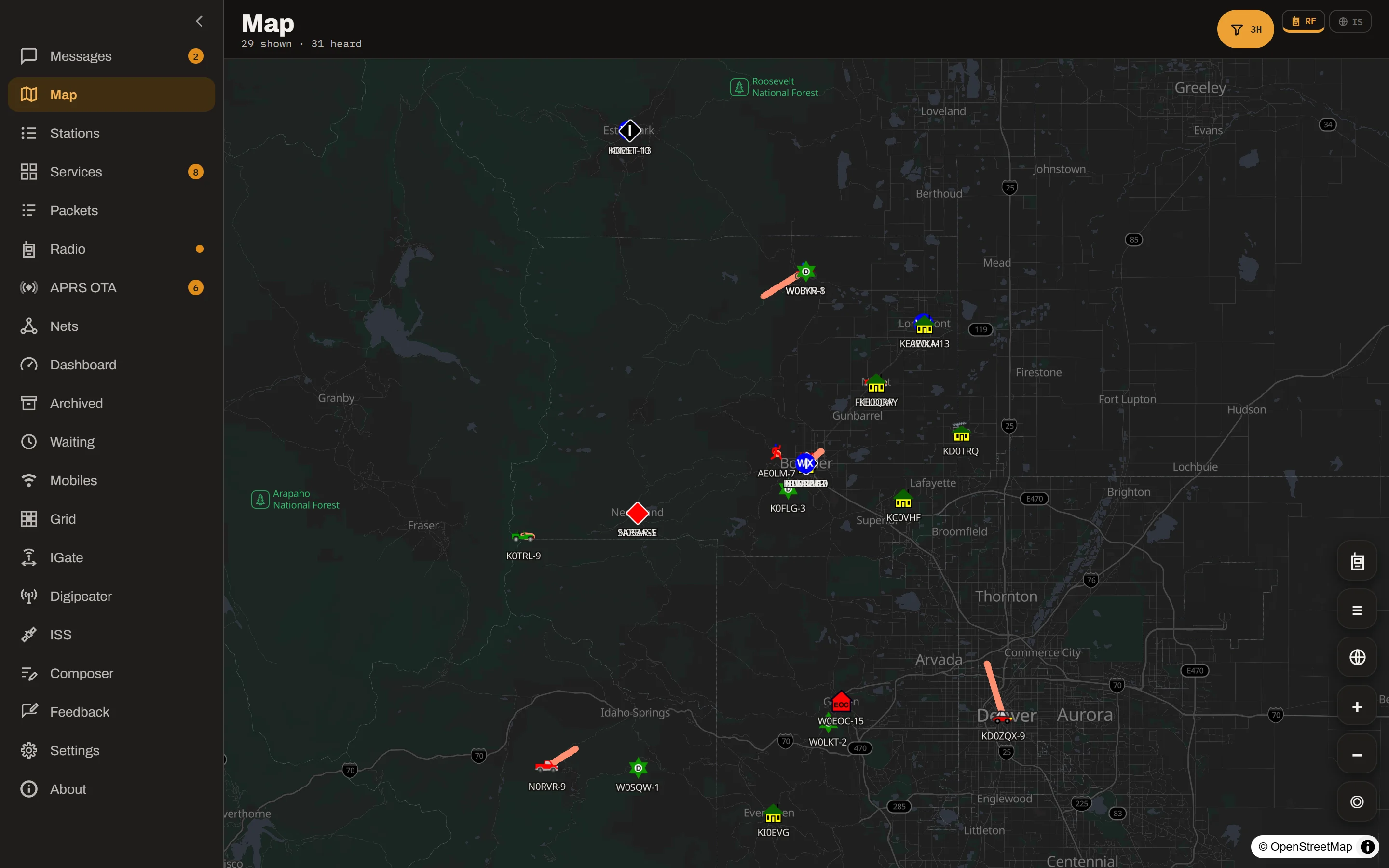
The same app as on Android and iPhone, in a window of its own. It suits a computer
in the shack that stays on, with a TNC or a radio attached. Messaging, the APRS
services, nets, the map and the packet log work over APRS-IS, and the app connects
to a radio through a USB or network TNC.
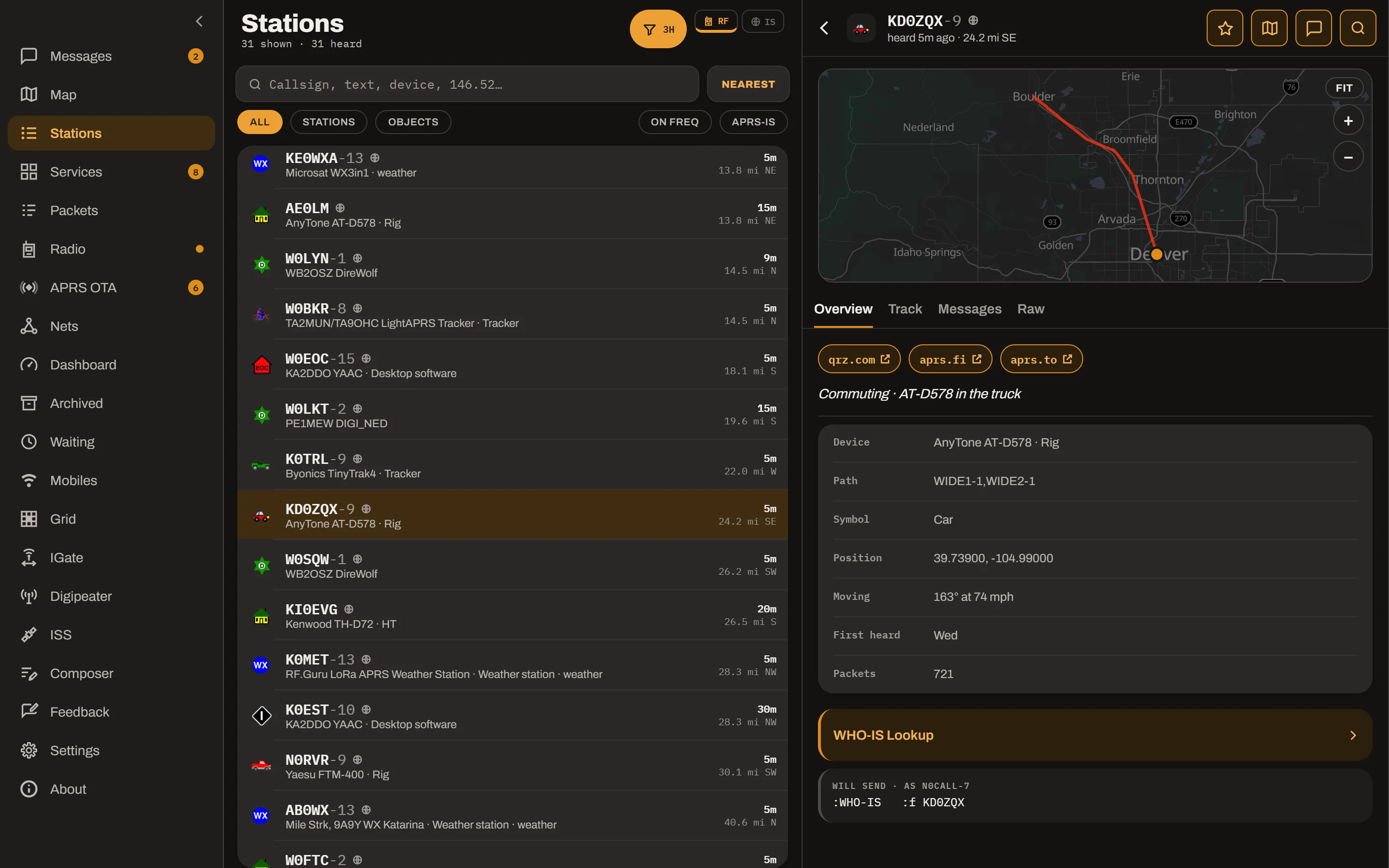
Stations on a wide window: the stations heard, and the one you picked with its
track. Select a picture to see it larger.
What the Linux app does
Everything over APRS-IS
Messaging with delivery states and retries, the APRS services, nets and
groups, APRS OTA, the map, stations, the packet log, beaconing and
backup, as on a phone. The app connects to the APRS-IS servers itself, so
your own server, port and filter work.
USB and network TNCs
A KISS TNC on a USB serial port, or a KISS TNC on your network such as
Direwolf, on this computer or another one. Radio channels are part of
APRS Connect Pro.
It keeps running in the tray
Closing the window does not stop the app. It stays in the system tray, still
receiving, beaconing and notifying, until you choose Quit there.
A list beside what it opens
On a wide window the app shows a list and the screen you open from it side
by side: your conversations beside the one you are reading, the stations
beside the one you picked. A right-click opens the menus that a long press
opens on a phone.
It updates itself
The app checks for a new version and downloads it in the background. The
update goes in when you restart the app, so it never drops a radio link in
the middle of a net.
A position for a computer
A computer usually has no GPS of its own. The app takes its position from a
GPS receiver on USB or a serial port, or from a fixed location you set.
Version 1.13.7. Built on Ubuntu 22.04, so it needs a system at least that recent, such as Debian 12 or Fedora 38.
Installing it
The commands below go in a terminal, in the folder the file was downloaded to.
They show the files for 64-bit Intel and AMD.
For 64-bit ARM the files are APRS Connect_1.13.7_aarch64.AppImage, APRS Connect_1.13.7_arm64.deb and APRS Connect-1.13.7-1.aarch64.rpm. Use the name of the file you downloaded.
The AppImage
Make the file executable: chmod +x "APRS Connect_1.13.7_amd64.AppImage"
Run it: "./APRS Connect_1.13.7_amd64.AppImage"
Nothing is installed. The app is that one file, so keep it somewhere it can
stay, such as a folder in your home. An update replaces the file where it is.
The app then walks you through the same setup as on a phone: your callsign, an SSID
and a symbol. You do not need to download it again for a new version. The app
updates itself.
Two things to know on Linux
Serial ports. To use a USB TNC or a GPS receiver, your user has
to be in the group that owns the serial ports. On Debian and Ubuntu that is
dialout: run sudo usermod -aG dialout $USER, then sign
out and in again.
The tray icon on GNOME. GNOME shows tray icons only with its
AppIndicator extension. Without it the app still keeps running when you close
its window, and starting it again brings the window back.
Pro on Linux
APRS Connect Pro adds the radio channels, offline map regions and more. Choose a
plan on the app's Pro screen, and the app opens the payment page on aprsconnect.com
in your browser.
Free and Pro lists what
is free and what Pro adds.
On Android and iPhone
APRS Connect is on Google Play for Android and on the App Store for iPhone and
iPad, and there is an app for Windows. It also runs in a
web browser, with nothing to install.