Moving APRS Connect to a new phone: backup and restore
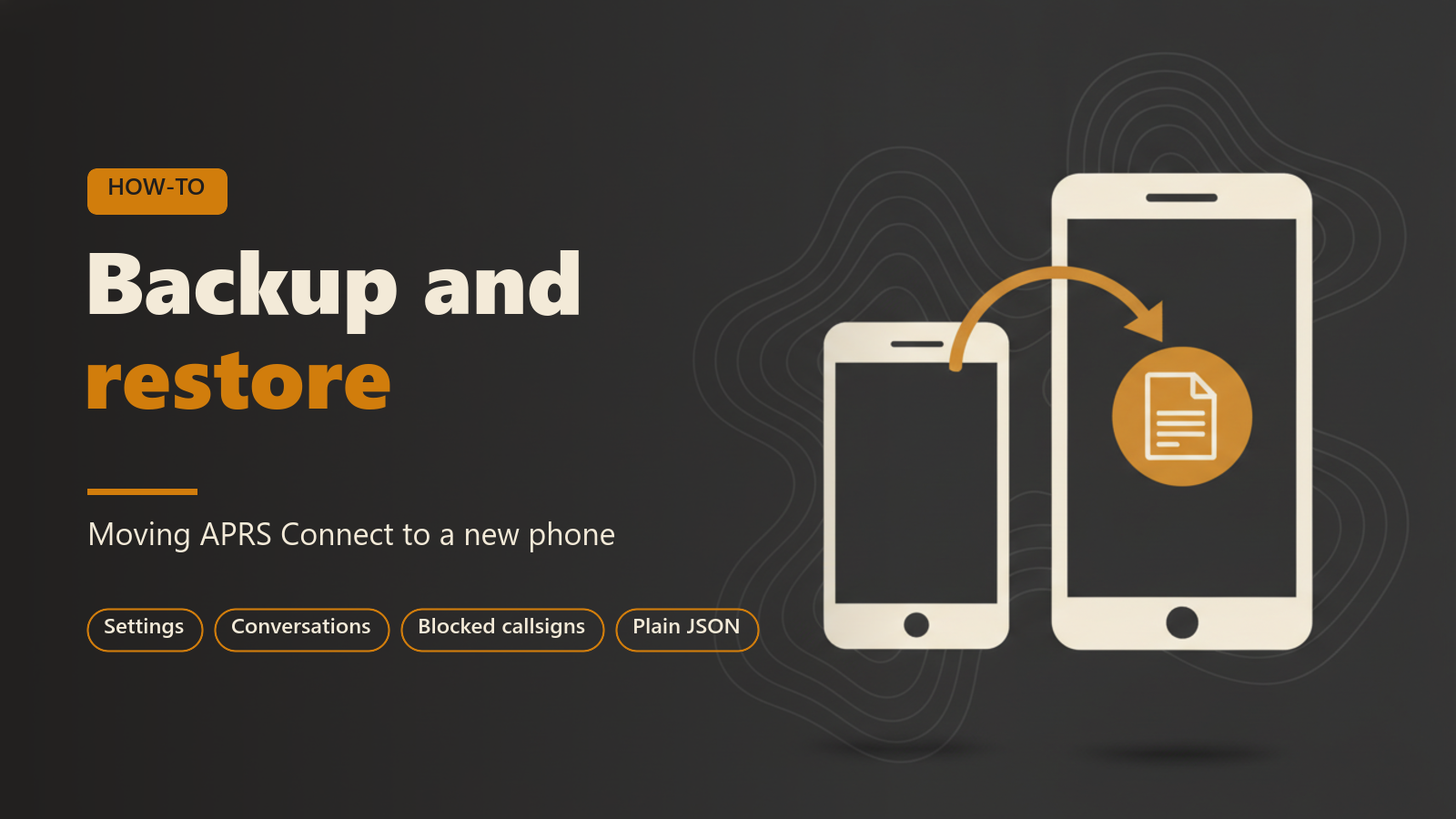
This post is for anyone who is replacing a phone and wants APRS Connect on the new one to look like the old one: the same callsign and beacon settings, the same conversations, the same block list. It covers what the backup file contains, what it leaves out, how to get the file off the old phone, how to import it on the new one, and how to get APRS Connect Pro back if you subscribe.
Everything the app knows is kept in a database on the phone, and the backup is local for the same reason. It is a file you save, move yourself, and bring back. Backup and restore is part of the free app, and it works with or without Pro.
What a backup contains
The backup is made on Settings → Backup. The file has separate sections, and each one can be switched on or off before you export:
- Settings: callsign, path, beacons, connections and map layers. This section also holds your APRS OTA options and the positions saved with each op you hosted, so your op maps come back on a new phone.
- Conversations: messages you sent and received, with delivery state, read state, and whether you stopped a message before it went out. Thread names and archive state are included. Your APRS OTA ops are rebuilt from these.
- Blocked callsigns: the block list and your notes on it.
- Your coverage map: the places you have reached a digipeater, used by the coverage layer on the map. Other stations' coverage is not saved, because that half fills in again from live traffic and yours does not.
What a backup leaves out
Three things are not in the file.
There are no passwords in it. That matters because the file is meant to be moved around, by email or through cloud storage, and read if you want to read it.
The packet log and station history are excluded on purpose. Both rebuild from live traffic once the new phone is receiving, and the raw feed is large. If you want to keep the raw feed from the old phone, the packet log has its own capture-file export, reached with PACKET LOG EXPORT on the Backup screen or with SAVE CAPTURE TO A FOLDER under Settings → Packet log. Exporting the log as a capture file is free. Reading a capture back in on the new phone, by import or replay, needs APRS Connect Pro.
The Pro subscription is not in the file either. A backup does not carry the subscription. The store does, and restoring it is a separate step described below.
Save to a folder or send to another app
There are two ways to get the file out. SAVE TO A FOLDER writes it to a folder you choose on the phone. SEND TO ANOTHER APP hands it to the Android share sheet, so it can go to cloud storage, email, or any other app that accepts a file.
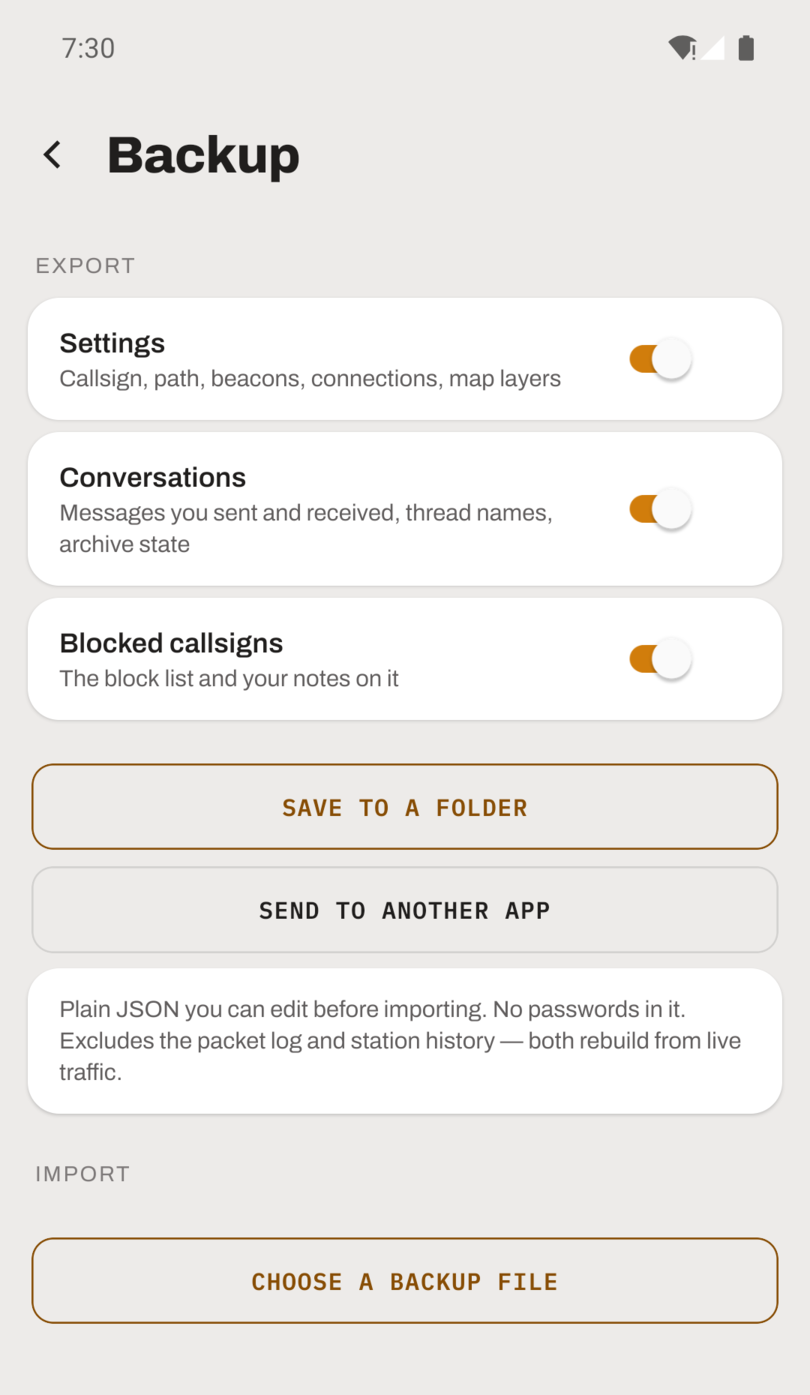
The Backup screen, with the export choices at the top and the import button below them.
The file is plain JSON
The backup is a plain JSON file. You can open it in a text editor, read what is in it, and even edit it before importing.
Importing on the new phone
Install APRS Connect on the new phone, get the backup file onto it, and open Settings → Backup. Tap CHOOSE A BACKUP FILE and pick the file.
Nothing is applied when you select the file. First there is a preview: when the file was exported and how long ago, which app version wrote it, and how many settings, messages, threads and blocked callsigns it contains. Entries that cannot be applied are listed one by one, each with the reason it will be skipped. A file that cannot be imported at all is refused whole, with the message "This file cannot be imported" and every problem listed, and is not half-applied.
Then you choose how the file is applied to what is already on the phone:
| Choice | What it does | Confirm button |
|---|---|---|
| Merge | Adds what is missing and deletes nothing. Importing the same file twice changes nothing. This is the default. | MERGE INTO THIS PHONE |
| Restore | Replaces settings and conversations with the file. Anything changed since the backup is lost. | REPLACE EVERYTHING, in red |
Merge is also the way to combine two phones' history, or to top a phone up after a gap.
Device settings stay behind by default
Some settings belong to one phone. Channels, which hold radio pairings and audio routing, and the outgoing message counter are kept in their own section of the file and skipped unless you switch Include device settings on. The screen says when that is right: for restoring the same phone, not copying to a new one. On a new phone, leave it off and set the radio up again. Radio channels need APRS Connect Pro.
Restoring Pro with Restore a purchase
If you subscribe to Pro, go to Settings → Subscription → Restore a purchase on the new phone. The app asks the store for a subscription bought on the same Google account or Apple ID, so the new phone has to be signed in to the store with the account that bought it.
Checklist for moving phones
- On the old phone, open Settings → Backup and leave the sections you want switched on.
- Export with SEND TO ANOTHER APP or SAVE TO A FOLDER, and put the file somewhere the new phone can reach.
- If you want the raw packet feed, export it separately as a capture file.
- Install APRS Connect on the new phone.
- Open Settings → Backup, tap CHOOSE A BACKUP FILE, and read the preview.
- Leave Include device settings off, choose Merge or Restore, and confirm.
- If you have Pro, use Settings → Subscription → Restore a purchase.
- Set up any radio channels again on the new phone.
Where to read more
Exporting and importing the backup is free. Radio channels, and replaying or importing a capture file, need APRS Connect Pro.